Product Search – Find Bike Parts Across Suppliers
Product Search (Produktsök) lets you search bike spare parts from many suppliers in one place. Instead of opening five different webshops, you type once and see matching products, prices and article numbers side by side.
Video walkthrough
The video shows the whole flow: an ordinary search across every supplier at once, when AI search is the better choice, how to narrow the result list, and how to open the product at the supplier. The same steps are written out below.
What it does
- Searches products from all your connected suppliers at the same time.
- Finds parts by product name, supplier, EAN (barcode) number, or article number.
- Shows each result with supplier, EAN, article number, brand, purchase price and sales price.
- Links straight to the product on the supplier's own website so you can order.
- Lets you describe the product in your own words with AI-sök (AI search), included in Pro.
Why it matters
Finding the right spare part is one of the slowest jobs at the counter and in the workshop. One search box across every supplier means faster quotes for customers, fewer wrong orders, and an easy way to compare what each supplier charges.
How to search, step by step
- Select Produktsök (Product Search) in the top menu.
- Leave the Sök (Search) tab selected. (The AI-sök (AI search) tab is covered below.)
- Type what you are looking for in the big "Search for products… (Sök efter produkter…)" box. You can enter a name (for example chain), an EAN barcode, or an article number.
- Press Enter, or select the blue Search (Sök) button.
- The results appear below, with a count of how many were found.
How matching works
The search tolerates spelling mistakes in words, but is exact about numbers.
- Words tolerate small spelling mistakes. Searching for bromsbelag still finds bromsbelägg.
- Numbers match exactly. Searching for
622will not bring back6220or1622. The same goes for terms that mix letters and digits, such asM6100. - Combine a supplier with a number. Typing Unicykel 25-622 searches only Unicykel's articles for that size.
- EAN and article numbers match exactly automatically — type or scan the whole number.
Can't find what you are looking for?
When a search returns few or no hits, the app offers two ways forward, right in the results list:
- Bredare sök (broader search) re-runs the same search with typo tolerance on numbers too. Use it when you suspect the number you typed is not written quite that way at the supplier. It applies to the current search — your next search matches numbers exactly again.
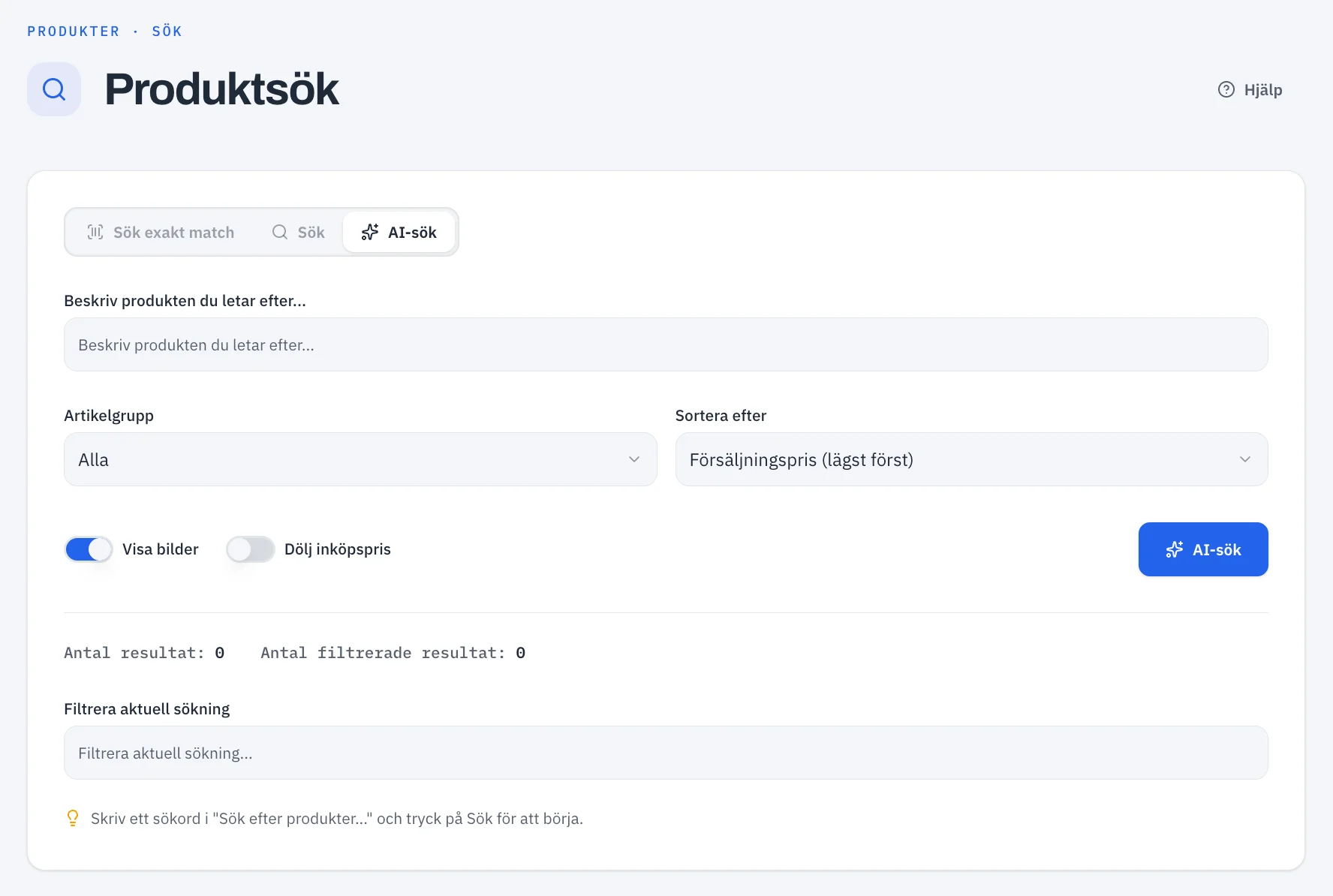
- AI-sök (AI search) lets you describe the product in your own words, for example puncture-resistant 28 inch tyre for an e-bike. AI search is included in Pro.
The links appear when a search returns zero hits, and at the bottom of the list when it returns fewer than 15.
Narrow down your results
Once you have results you can refine them without searching again:
- Article group (Artikelgrupp): choose a category to show only parts in that group. (The grouping is a helpful guide, not perfect.)
- Sort by (Sortera efter): order results by sales price, purchase price, description (A–Z), article group, or supplier.
- Filter current search (Filtrera aktuell sökning): type here to shrink the current list. This filter matches exactly, so it is great for zooming in on one word or number.
See product images
Tick Show images (Visa bilder) to display product photos in the results. If you leave it off, you can still pull an image for a single product using its "get more information" button. Select any image to enlarge it.
Open the product at the supplier
Each result has a Link to product (Länk till produkt) button. Select it to jump to that product on the supplier's website, where you can check stock and place your order.
Tip
The little Help (Hjälp) button in the top-right of the Product Search page opens a built-in reminder of all these options at any time.
Related
- Suppliers — where the supplier links and contact details live.
- Common Workflows — see "Finding and ordering a spare part".